Set it up once. Stay in control from anywhere.
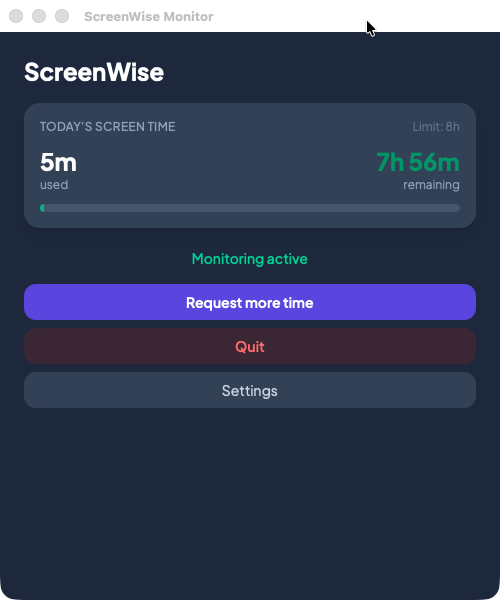
A small monitor app runs on your child's computer and follows the rules you set in the parent app.
Add the computer
Install the ScreenWise monitor on your child's Windows or Mac computer and enter the short registration code from your dashboard.
Set the rules
Choose a daily time budget and the hours the computer may be used, with different rules for different days of the week.
Approve or decline
When your child asks for more time, you get a notification. Approve it, decline it, or adjust today's time yourself at any point.
Everything you need, nothing you have to babysit.
Daily time budgets
Give each computer a daily allowance in minutes. ScreenWise counts active time and shows what is left, live.
Allowed hours
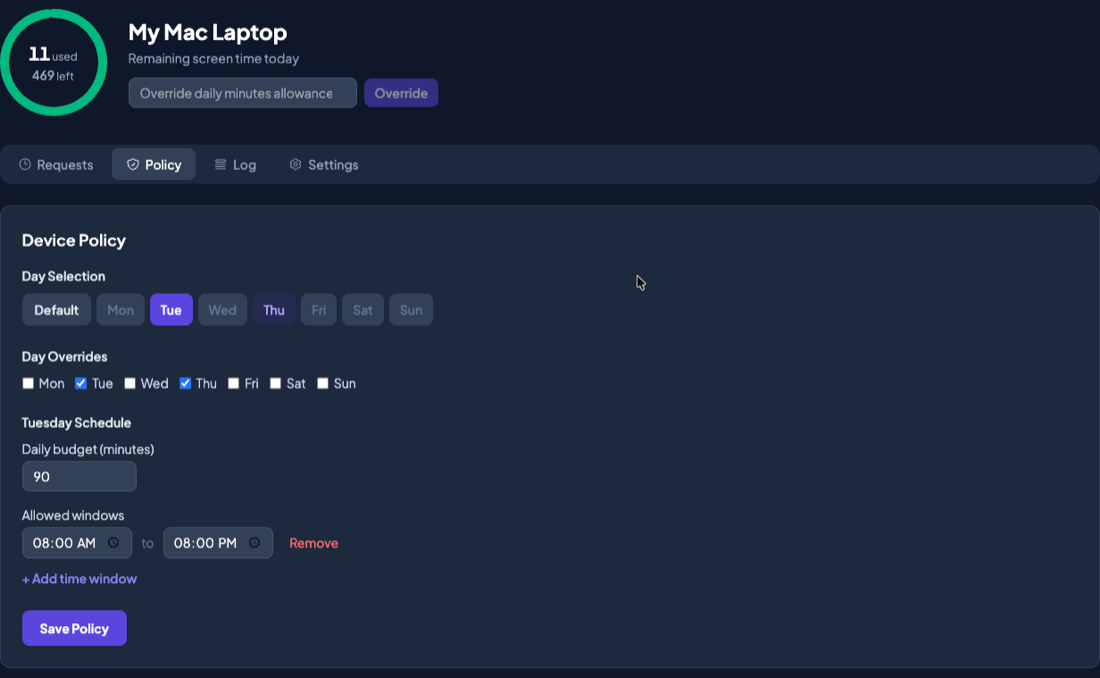
Set the windows when the computer can be used, for example 8:00 AM to 8:00 PM, with separate rules for any day of the week.
Time requests
Kids ask for more time from their own screen. You see the reason and choose how much to grant, or say no.
Activity log
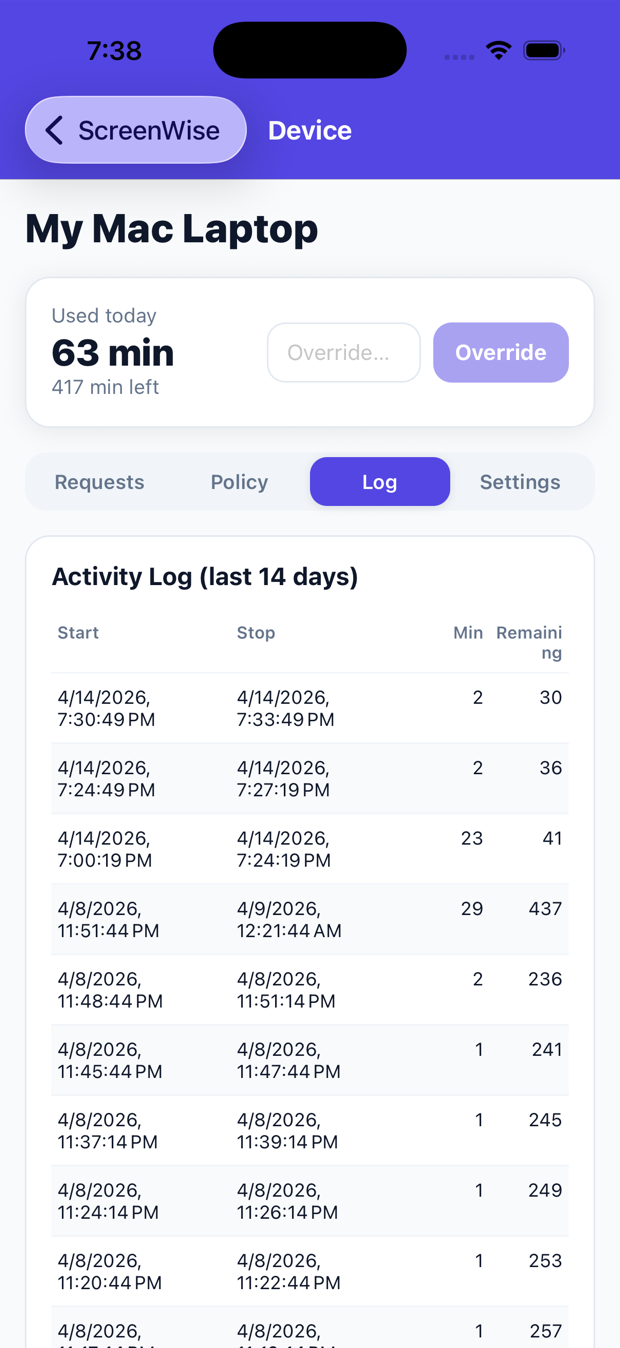
See when the computer was used, for how long, and how much time was left, for the last two weeks.
Notifications and daily summary
Get alerts by email or push for requests and limits reached, plus an optional daily summary. Turn any of them off.
Hard to get around
Limits are enforced on the computer, keep working if the internet drops, and the monitor is protected by an admin PIN only you know.
Simple on every screen.
Rules in a few taps
Pick a day, set the budget and the allowed hours, and save. Different days can have different rules.
- Weekday and weekend schedules
- One or more allowed time windows per day
- Rules are checked before they are saved
Time requests you can act on
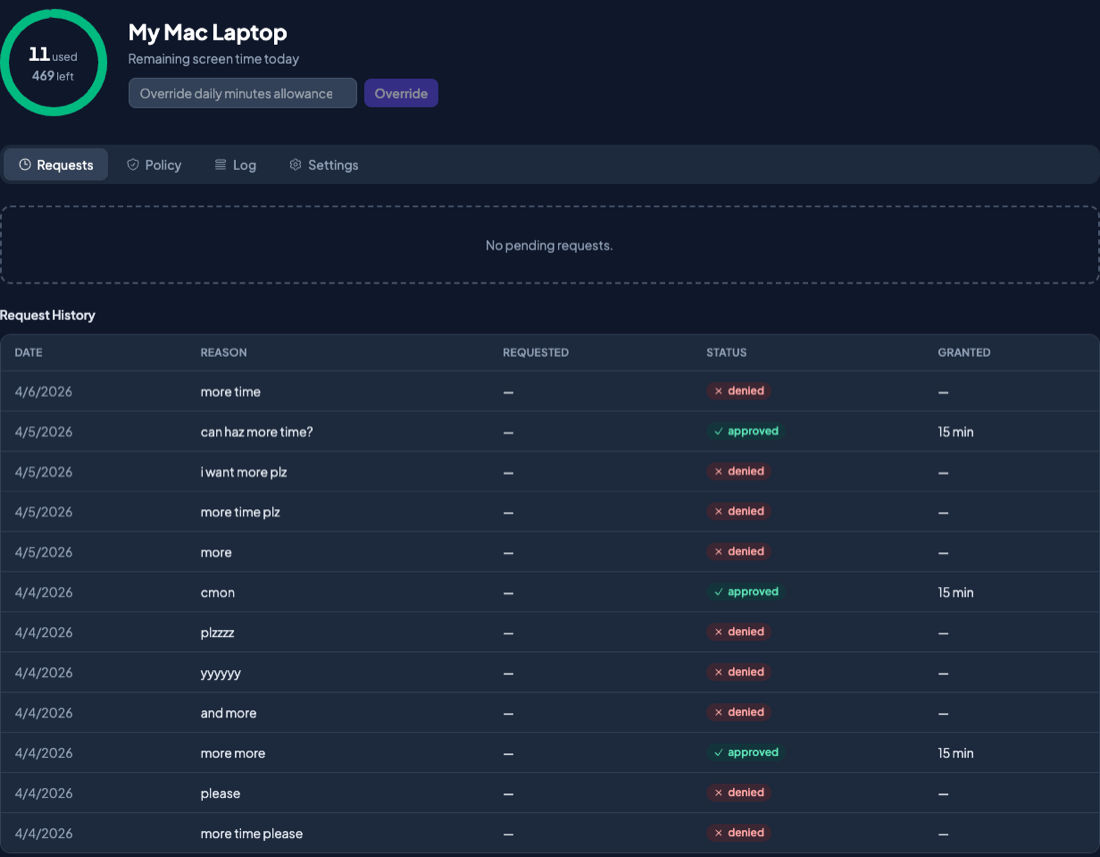
See every request with your child's reason and what you decided. Approving takes one tap and the extra time reaches their computer shortly after.
In your pocket
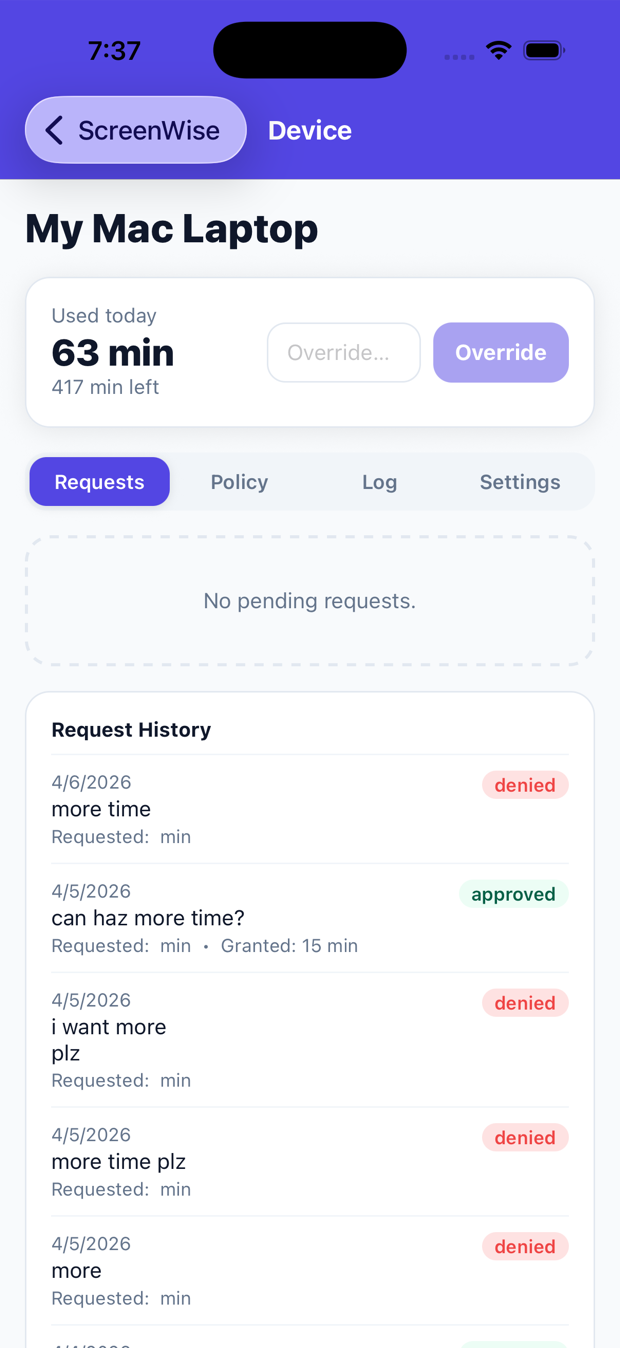
The mobile app shows today's usage for every computer, lets you override the daily allowance, and keeps a 14 day activity log.
Built for the way families really use computers.
Windows
The monitor starts with Windows and enforces limits on the child's account.
macOS
A native Mac app that runs in the background and follows the schedule you set.
Web and mobile
Manage everything from the web dashboard or the mobile app. The mobile app is on iOS first.
Questions parents ask.
Can I use it today?
ScreenWise is in a closed beta with a small group of families. Email us to request an invite and we will let you know when there is room.
What does it run on?
The monitor runs on Windows and macOS computers. You manage it from a web browser or the mobile app.
What happens if the computer is offline?
The monitor keeps the latest rules on the computer, so limits keep applying without an internet connection.
Can my child turn it off?
Quitting or changing the monitor needs the admin PIN, which only you know.
What data do you collect?
Only what is needed to apply your rules: when the computer is in use, for how long, and your child's time requests. Read the full privacy policy.
Want to try ScreenWise?
We are inviting a small number of families to the beta. Email us a little about your setup and we will be in touch.
sales@screenwise.online